
Tag Manager sits between your site and every tracking tool you use, letting you add or change tags without editing site code each time — but it only pays off if the container is actually set up correctly from the start, since a badly structured container becomes its own maintenance problem rather than the simplification it’s meant to be.
Why the container structure matters more than just installing it
A GTM container that’s just a dumping ground for tags, with no consistent naming or trigger organisation, is hard to maintain and easy to accidentally break when adding the next tag — setting it up with clear structure from the start costs nothing extra now and saves real confusion later, for you or whoever touches it next.
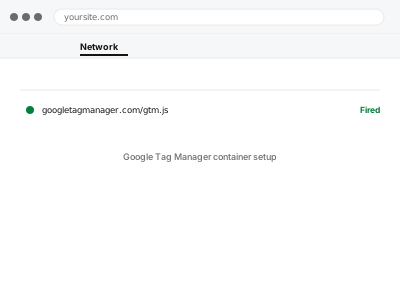
Google Tag Manager container setup
A Tag Manager container set up with real structure, not just tags dumped in with no organisation.
- Full backup taken before we start
- If we can’t fix it, you get your money back
- We never ask for your own password
What we need from you
- Which tags you already know you want in the container (GA4, ads pixels, others)
- Whether you have an existing GTM account, or need one created
- Confirmation of who else should have access to the container
This or something else?
| You want GTM set up as a clean, well-organised container for the first time | This fix covers it |
| GTM is already set up and you’re moving specific hardcoded scripts into it | GTM migration from hardcoded scripts |
| You just want GA4 connected, with no other tags planned | GA4 property setup & WordPress connection, simpler than this |
| You want server-side tagging, not the standard client-side container | Server-side tagging endpoint configuration, a more advanced setup |
What we do
- Create the GTM container and install it correctly on the site (both required code snippets)
- Set up the tags you’ve specified, with clear, consistent naming
- Configure appropriate triggers so tags fire when they should, and not otherwise
- Test each tag using GTM’s own Preview mode before publishing
- Publish the container and confirm tags fire correctly on the live site
- Document the container’s structure for anyone who adds tags later
What is included
- A correctly installed GTM container with the specified tags configured
- Testing via Preview mode before anything goes live
- Confirmed working tags on the published site
- A written note on the container’s structure
Not included
- Setting up tags beyond what you’ve specified at the time of ordering
- Server-side tagging, a separate, more advanced setup
- Ongoing tag additions as your tracking needs grow
- Fixing an existing messy container — that’s a cleanup, quoted based on what’s actually there
Questions about this fix
Do I need to know what all the tags do to order this?
No — tell us what you're trying to track (ad conversions, form submissions, whatever it is) and we'll recommend the right tags rather than expecting you to specify GTM terminology yourself.
Can I add tags myself later without breaking anything?
That's the whole point of a well-structured container — clear naming and organisation make it realistic for you to add straightforward tags yourself afterward, with less risk of conflicting with what's already there.
What's the difference between this and just installing GA4 directly?
GTM adds a layer that lets you manage multiple tags in one place without editing site code each time — worth it if you'll likely add more tracking later, unnecessary if GA4 is genuinely all you'll ever need.
Will this slow my site down more than direct tag installation?
Marginally, since GTM itself is one small script that then loads your other tags — for most sites this difference isn't noticeable, and the maintenance benefit usually outweighs it.
Can multiple people manage the container without stepping on each other?
Yes, GTM has built-in workspaces and version history specifically for this, which we set up as part of a properly structured container.
Related fixes
If this is the second time this year
A bad update breaking the site is a symptom of updates not being tested first. Care plans run every update on a staging clone before it reaches your live site, which is the actual fix for this happening again.
Your access, your rules
Create a separate admin account for us and delete it when we are done. For anything else, we get in touch and agree a method — never a form field on this site, never by reply to an email.
We back up first, always
Before anything is touched we take a full backup and keep it for 30 days. If a fix goes wrong, we put the site back exactly as it was.
If it is not what you bought
If the problem turns out smaller than what you ordered, we refund the difference. If it is bigger, we stop and send a quote before doing any extra work.
If we cannot fix it
You get back what we received. Diagnosis is on us — you only pay when the problem is actually solved. The payment processor takes its fee before the money reaches us, so we never hold it and it is not ours to return. That is true here as everywhere else.
If it comes back
Reply within seven days of delivery and we put it back on the bench at no cost. The fix is not finished until it holds.
What we are responsible for
If something goes wrong with a fix, our responsibility is limited to what you paid for it. We take a full backup first so mistakes can be undone, and we tell you before doing anything outside what you bought.